Conditions across pages allow you to show or hide questions based on answers from previous pages.
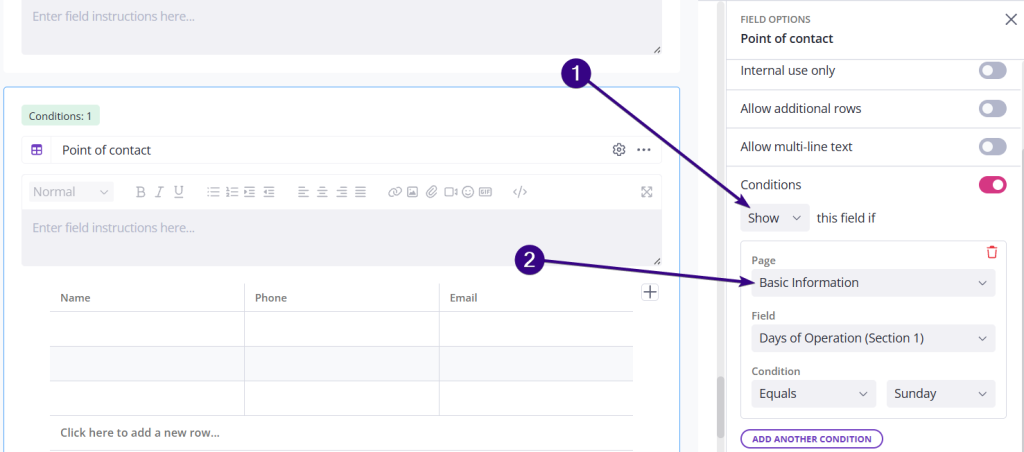
To do that, go to Field Options → Conditions and use the dropdown to show or hide a field based on a specific answer from one of the previous pages:
Here are a couple of ways people are already using it.
1. Internal setup page
On the first page of your request, you can include internal questions about the client. Internal fields are only visible to your team, not the client, and can be answered before the request is sent. These then trigger other questions to show or hide, creating a customized request.
For example, you might ask how many individuals, companies, or trusts the client has. Based on those answers, you can then display only the relevant questions on the subsequent pages, keeping the request focused and easier to complete.
2. Client setup page
Similarly you might have your client answer a few preliminary questions on the first page. Based on those, you customize the rest of the request.
| Note: These are just a couple of examples. The feature is highly flexible, so you can adapt it to fit many different workflows. If you need help setting it up, feel free to contact the support team. |
Hide entire pages
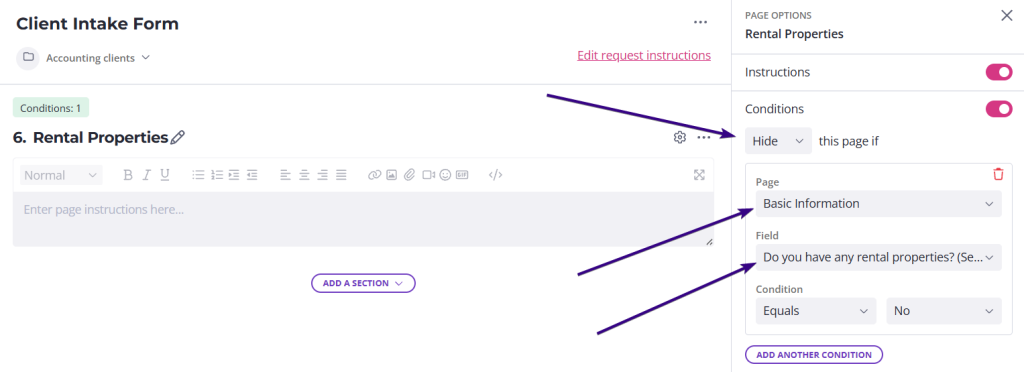
Previously, you could set conditions on sections to hide anything not relevant. Now you can do the same with entire pages.
For instance, you might ask “Do you have any rental properties?” on the first page called Basic Information. If the answer is no, the entire rental properties page can be hidden: