
Verify your client’s identity and screen them against global sanctions, PEP, and adverse media databases, all within a Content Snare request.
Content Snare’s ID verification and AML screening is powered by ComplyCube, a global identity verification and compliance platform. When a client completes a verification step, Content Snare securely submits their data to ComplyCube for processing. Results are returned to Content Snare and displayed inside the request.
Before you start
To use ID verification and AML screening, you need:
- A valid Content Snare account (not expired)
- A valid payment method added to your account
Enabling the verification provider
Before adding verification fields to your requests, you need to enable ComplyCube in your account settings.
- Click your avatar in the upper-right corner and choose Settings
- In the left sidebar, click ID Verification and AML
- Select ComplyCube as the verification provider
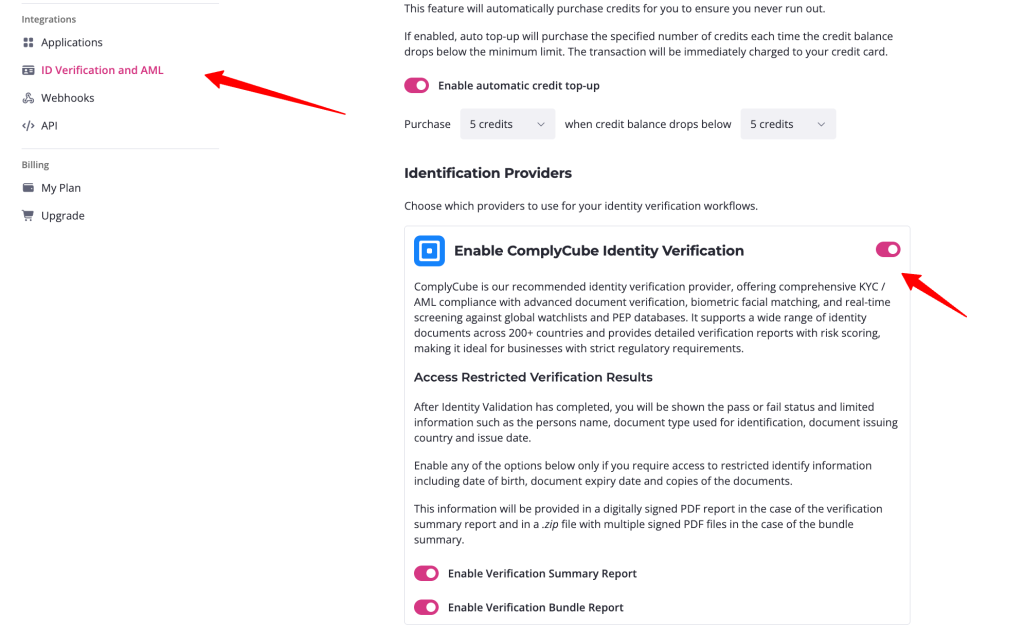
You only need to do this once. After the provider is enabled, you can add verification fields to any request.
Credits
Each verification uses credits. The credit cost depends on which checks you enable:
- Standard checks only: 1 credit per verification
- Standard + one or more Premium checks: 2 credits per verification
A credit is used when a client starts the verification process. If your client cancels or denies consent before completing verification, the credit will be returned. Note that it can take up to 24 hours for a returned credit to appear in your balance.
A failed verification (e.g. the document was unreadable or the selfie didn’t match) still uses a credit.
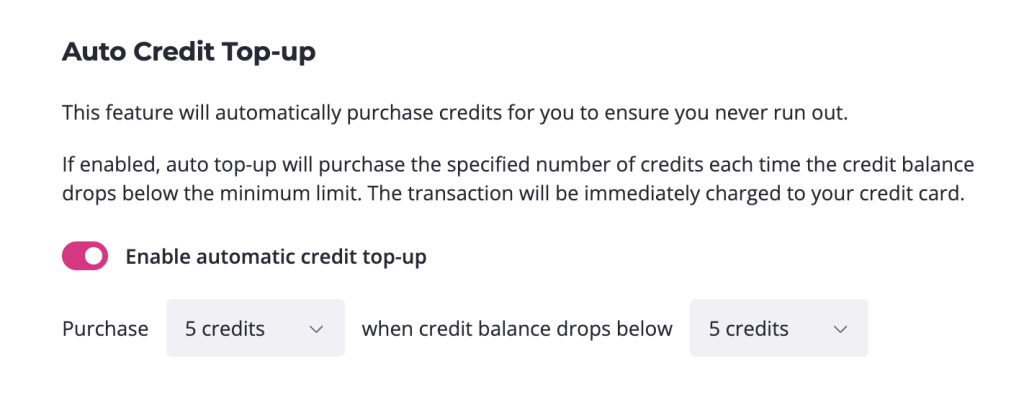
If you don’t have credits available, the system will display a warning and prompt you to purchase more. You can also enable automatic credit top-up in your settings to purchase new credits automatically when your balance drops below a set number.
Adding ID verification and AML to a request
Step 1: Add the field
In the request builder, add an ID Verification and AML field to any page or section, just like any other field type.
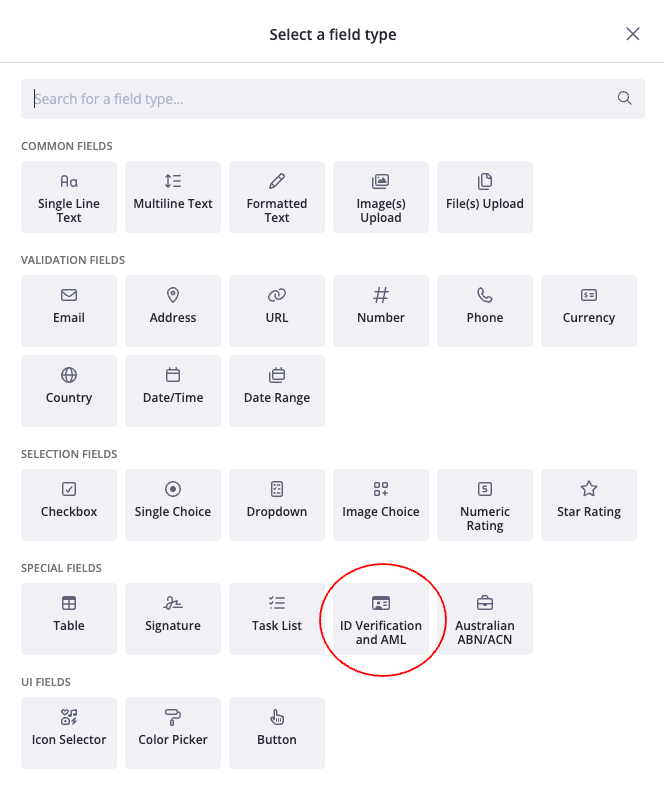
Step 2: Select ComplyCube as the provider
With the field selected, open the field settings panel. Under Verification provider, select ComplyCube.
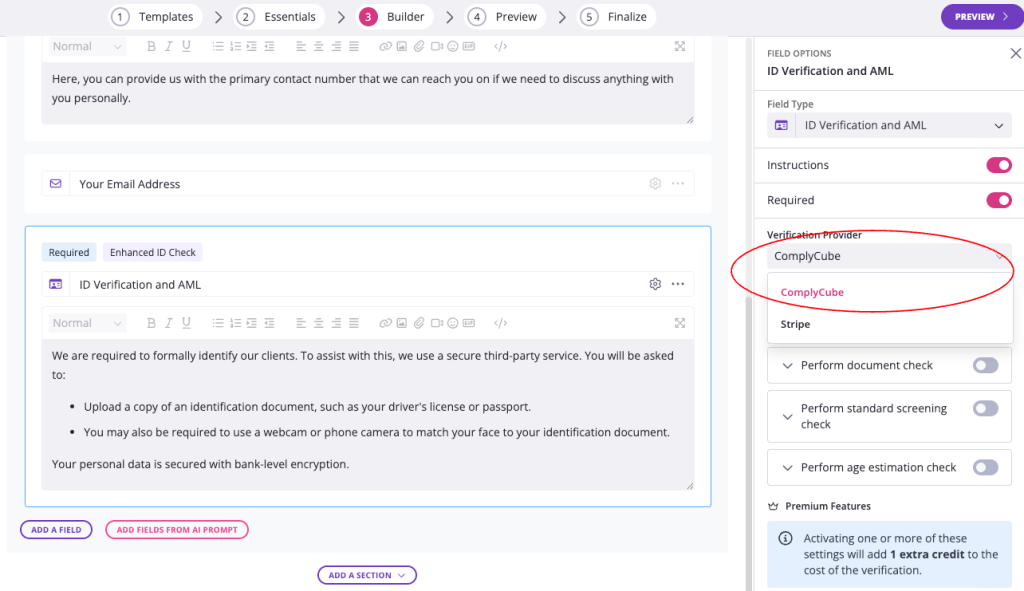
Step 3: Choose your checks
Once ComplyCube is selected, you’ll see a list of available checks. Toggle on the ones you need. These are split into Standard and Premium features (see the full list below).
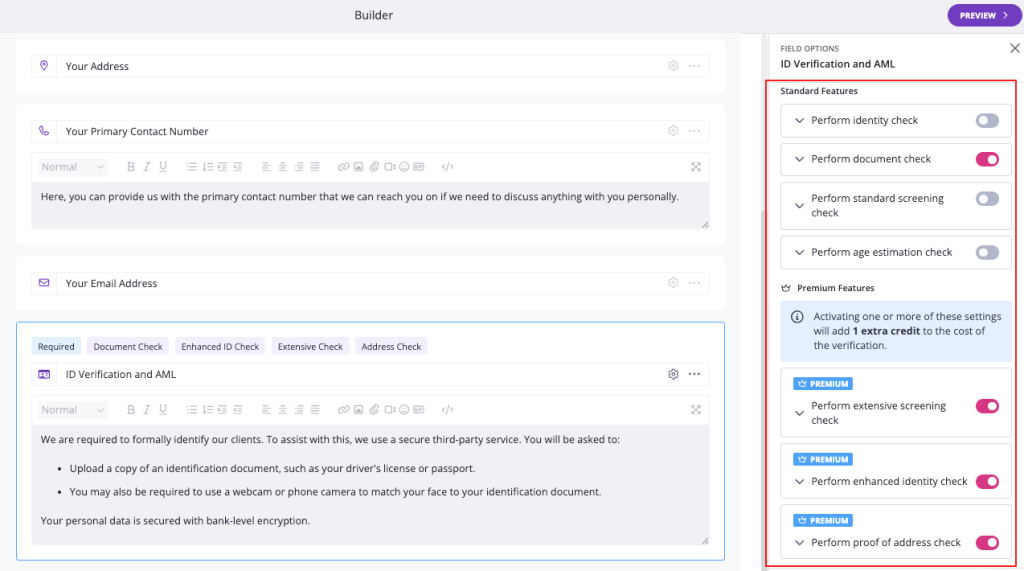
Step 4: Configure field options
You can also configure:
- Allow retry on failed verification: If enabled, your client can try again if their verification fails (this uses an additional credit). If disabled, you will need to reject the field before your client can attempt verification again.
Available checks
Standard features
These checks are included in the base credit cost.
Perform identity check
Confirms that the person submitting the verification is the same person shown on their identity document.
How it works: Your client uploads a government-issued ID and takes a selfie. ComplyCube’s liveness detection and facial recognition engine compares the two images and calculates a similarity score.
Behind the scenes, the system performs:
- Facial similarity scoring (0-100% confidence match between selfie and ID photo)
- Liveness detection using 3D facial mapping, skin texture analysis, and pixel-level tampering detection
- Spoofed image detection to catch manipulated or internet-sourced photos
- Banned faces screening to detect previously flagged individuals
- Duplicate detection to identify faces enrolled under different identities
- Mask and replay attack detection (printed photos, 3D masks, image replays)
Results come back in approximately 3 seconds.
This check is ISO-certified for Presentation Attack Detection (PAD Level 2).
Perform document check
Verifies that your client’s identity document is genuine and extracts key details from it.
ComplyCube runs 7 categories of analysis on the document, checking for signs of tampering, forgery, or manipulation. This covers government-issued documents such as passports, driver’s licences, and national ID cards.
The extracted details (name, date of birth, document number, expiry date, etc.) are used to cross-reference against other checks.
Perform standard screening check
Screens your client against global sanctions and watchlists, and checks for Level 1 politically exposed persons (PEPs).
This check searches over 2,500 global, regional, and local lists. The standard screening covers:
| Category | What’s checked |
|---|---|
| Sanctions | Sanctions lists, official government lists, war crime designations, sanctions control mechanisms |
| PEP | Level 1 only: heads of state, national government ministers, national legislature members |
| Adverse media | Not included |
| Other lists | Not included |
Results typically come back in under 1 second.
Note: If you view the verification results and see grey icons next to certain checks (e.g. adverse media, PEP levels 2-4, financial crime), this is expected. Grey icons indicate those categories were not processed because they fall outside the scope of standard screening. To check those categories, enable the extensive screening check (Premium feature below).
Perform age estimation check
Estimates your client’s age from their selfie using facial analysis.
The system returns a specific age estimate and a predicted age range, along with a liveness confidence score. No additional documents are required beyond the selfie already captured during the identity check.
Results come back in approximately 4 seconds.
This is useful for services with age-related eligibility requirements.
Premium features
Enabling one or more of these adds 1 extra credit to the cost of the verification.
Perform extensive screening check
An expanded version of the standard screening that covers significantly more databases and deeper PEP levels.
| Category | What’s checked |
|---|---|
| Sanctions | Everything in standard, plus child sexual exploitation lists, terror designations, other exclusion lists |
| PEP | Levels 1-4: adds regional officials, civil servants, armed forces, judiciary, religious leaders, state corporation executives, political party officials, international organisation officials, mayors, and local government officials |
| Adverse media | Environment and production, social and labour, competitive and financial, regulatory |
| Other lists | Organised crime, financial crime, tax crime and corruption, trafficking, associated entities |
For firms with AML/CTF obligations (e.g. under Australia’s Tranche 2 reforms), this is the screening level most will need. The deeper PEP coverage and adverse media checks are typically required for proper due diligence.
Perform enhanced identity check
A stronger version of the standard identity check that uses active liveness verification instead of a static selfie.
Instead of taking a photo, your client records a short video (approximately 20 seconds) with guided challenges:
- Motion challenges: The client is asked to perform specific head movements
- Voice challenges: The client is asked to speak or repeat phrases
- Micro-expression analysis: The system evaluates natural facial movements during the video
This defends against more sophisticated fraud attempts including pre-recorded video replays, deepfakes, and high-quality 3D masks. It provides a higher level of assurance that a real person is completing the verification.
Like the standard identity check, this is ISO-certified for Presentation Attack Detection (PAD Level 2).
Perform proof of address check
Verifies your client’s residential address by extracting and validating data from a proof of address document.
Your client uploads a document such as a utility bill, bank statement, or government letter. ComplyCube’s OCR engine extracts the name, address, and date from the document, then verifies these details against the information your client has provided.
This is useful when you need to confirm a client’s address as part of your customer due diligence process.
Continuous monitoring
Verification gives you a point-in-time result. Continuous monitoring keeps watching after that initial check, automatically re-screening your client every month so you’re alerted if their risk status changes (for example, they become a PEP or show up in adverse media).
Turning on continuous monitoring
Continuous monitoring is enabled per check. When you add or edit an ID Verification and AML field, toggle on Continuous monitoring in the field settings.
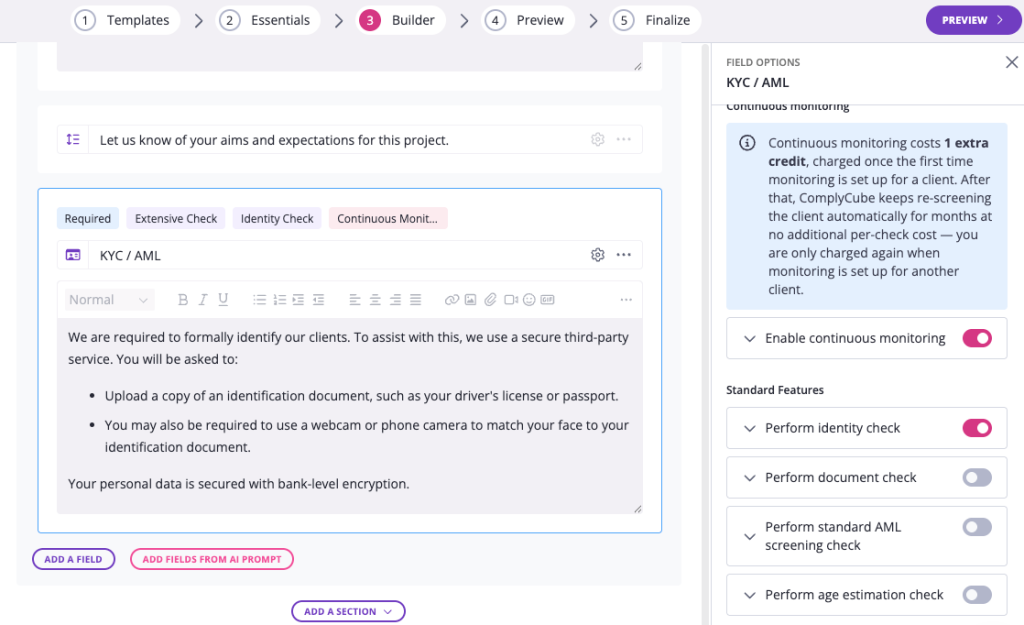
What it costs
Continuous monitoring costs 1 credit, charged once at setup. That single credit covers the ongoing monthly re-screening for as long as monitoring stays on, in addition to the credits used for the initial verification.
What gets checked
Each month, Content Snare re-runs the screening against the latest data, covering:
- Sanctions and global watchlists
- PEPs (all levels)
- Adverse media
- Other lists (organised crime, financial crime, tax crime, trafficking, and associated entities)
This is the same coverage as the extensive screening check, repeated on a monthly cycle so new matches are caught as they appear rather than only at the time of the original check.
AML dashboard
All monitoring results surface in your AML dashboard, alongside any screenings flagged for manual review. If a monthly re-screen turns up a new match, it appears there for you to review and action as part of your ongoing due diligence: no re-screening by hand, no calendar reminders.
When something is found
If a monthly re-screen turns up a new match, it’ll appear on your AML dashboard for you to review and action as part of your ongoing due diligence.
Adding monitoring to a check you’ve already created
If a verification was set up without continuous monitoring and you’d like to add it after the fact, contact our support team and we’ll enable monitoring on that check for you.
What your client sees
From your client’s perspective, the process is simple:
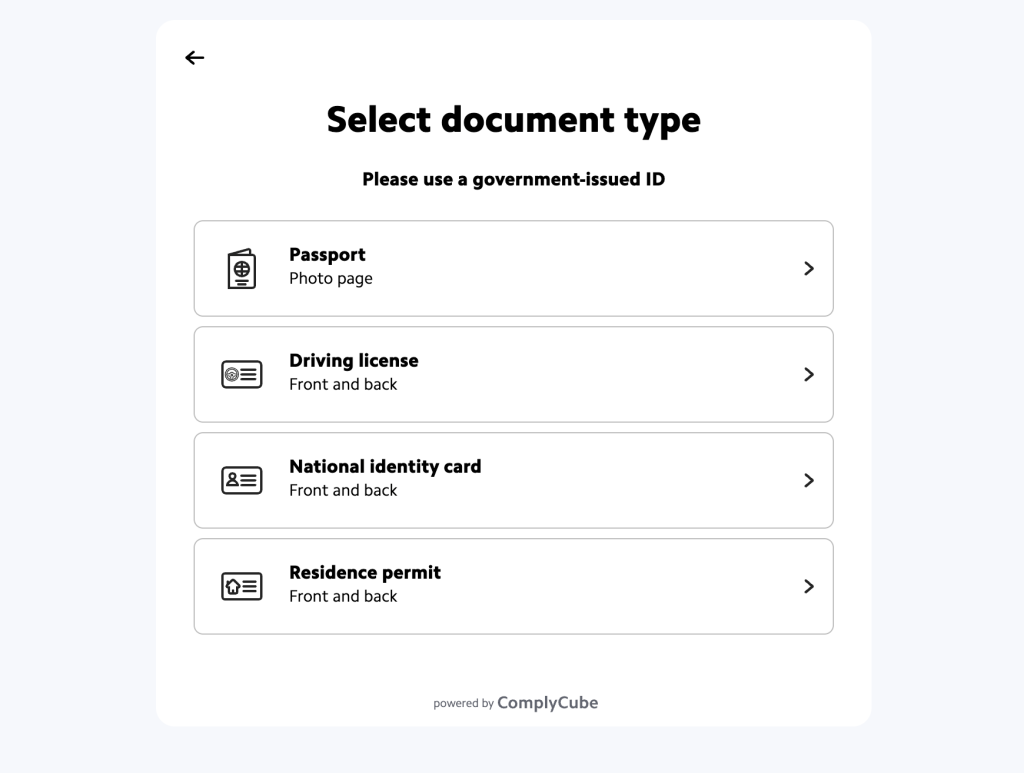
- They fill in their personal details
- They upload a photo of their identity document (front and back if required)
- They take a selfie (standard) or record a short video (enhanced)
That’s it. All screening and verification happens in the background. Your client does not see the results.
Watch the video at the top of this article for a full walkthrough of the client experience.
The client AML page
Every client now has their own AML page that keeps all their checks, statuses and reports in one place.
It’s under Clients → KYC/AML, where you can:
- Review clients: Flag Proceed or Don’t Proceed. Decisions are logged against the person who made it.
- Team member access: There’s a per-person setting for who can see and review AML details.
- Report downloads: download reports for each individual check, or a summary report for the whole client.
- Live photo and video: You can watch the identity check footage right in the report.
- Better screening matches: Date of birth is now required, and you can add country of birth. Both cut down the false matches you get on common names.
- Standard checks toggle. One switch in the builder ticks the recommended set (identity, document, extensive screening and ongoing monitoring), so you’re not guessing which ones you need.
| Note: Nothing changes for your client. They still do the check inside the request they’re already filling in. |
Verification result states
Once your client attempts the verification, one of the following states will appear on the field.
Pending
The system may take a moment to complete the verification. You’ll see a notification that your client’s identity is currently being verified. This usually resolves within a minute.
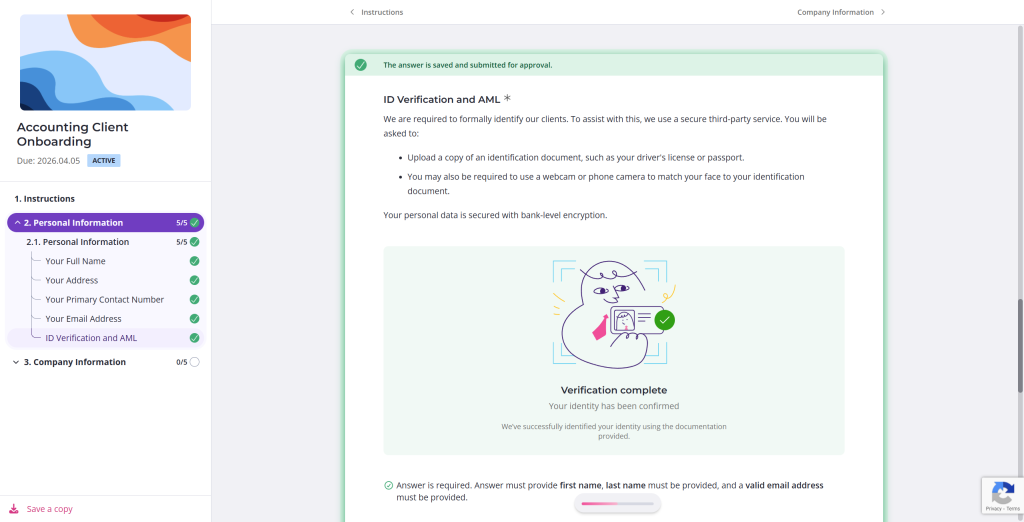
Verified (success)
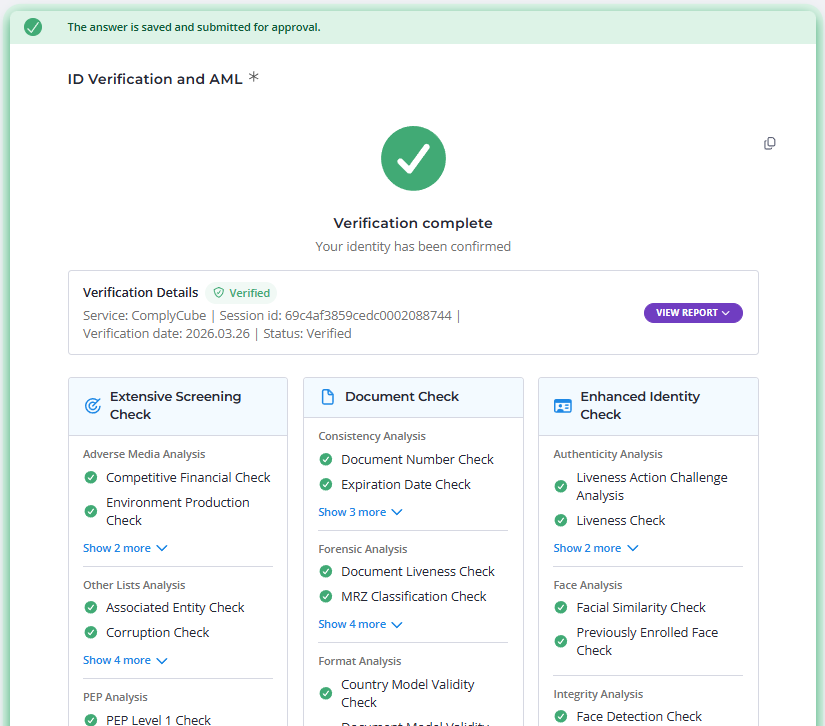
All enabled checks passed. A green tick icon is displayed with “Verification complete” and “Your identity has been confirmed.”
The verification details show the provider (ComplyCube), session ID, verification date, and a Verified status badge.
Not Verified (failure)
One or more checks failed. A red X icon is displayed with “Verification Not Completed” and “This verification attempt was not successful. Review the results below for more details.”
Each individual check shows its own Pass or Fail badge, so you can see exactly which checks succeeded and which didn’t. For example, the age estimation and screening may pass while the identity or document check fails.
If allow retry on failed verification is enabled, your client can try again (this uses an additional credit). If retry is disabled, you’ll need to reject the field before your client can attempt verification again.
Client denied consent
Your client chose not to agree to the verification terms. In this case, the credit will be returned to your account (this can take up to 24 hours). You’ll be notified that the client denied consent.
Viewing results in detail
The full results are grouped by each check you enabled.
Each individual database check displays one of three statuses:
- Green tick: The check was processed and cleared (no matches found)
- Red X: The check was processed and found an issue or a potential match
- Grey icon: The check was not processed because it falls outside the scope of the screening level you selected (e.g. adverse media and PEP levels 2-4 are not checked under standard screening)
You can expand collapsed sections (e.g. “Show 3 More”) to see every database that was checked.
Downloading reports
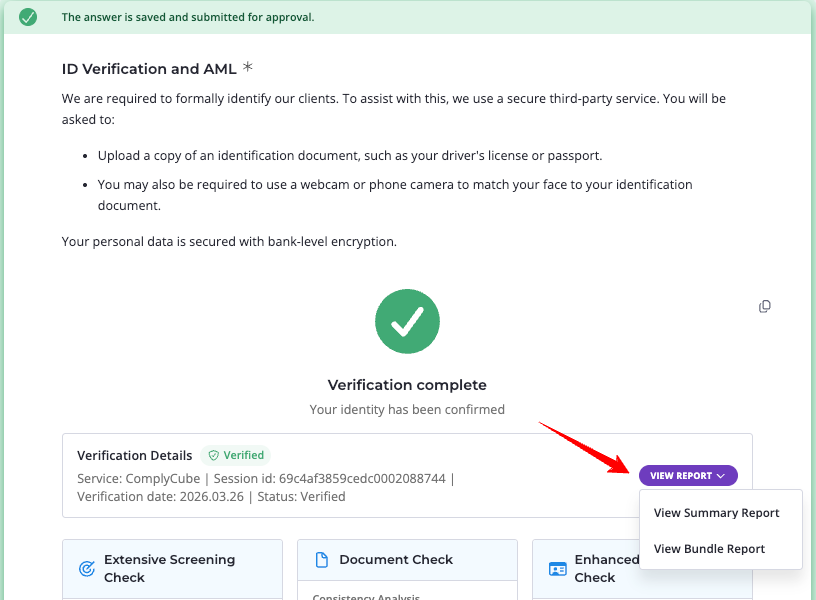
Click the View Report dropdown to download verification reports.
Summary report: A high-level PDF overview confirming which checks were performed and their outcomes. Suitable for your compliance records as a quick reference.
Bundle report: A comprehensive PDF containing the full results of every database checked, plus the source documentation (selfie photos, ID document images, extracted data). This report contains highly sensitive personal information and should be stored and shared securely in line with your firm’s data handling policies.
Reports are available for both successful and failed verifications.
Want to see what these look like first?
We’ve put together a set of sample reports for a fictitious client (Bob Smith) so you can see the format before running a verification. All personal details have been replaced with sample data.
View sample reports →
The folder includes a sample summary report and a full sample bundle report (the document check, enhanced identity check, and extensive screening check), so you can compare the two download options described above.
Viewing the verification record on a client’s profile
You can also view a client’s verification history from their profile. Go to Clients, select the client, and scroll to the bottom of their details page. All verification attempts are listed there.
Understanding the results
Identity check results
The identity check results are grouped into three categories:
Authenticity Analysis
- Liveness Check: Confirms the selfie/video was taken by a live person
- Spoofed Image Analysis: Checks for manipulated or fake images
Face Analysis
- Banned Faces Analysis: Checks against a database of previously flagged faces
- Facial Similarity Check: Compares the selfie to the ID document photo (returns a confidence score from 0-100%)
Integrity Analysis
- Face Detection Check: Confirms the image quality is sufficient and the correct number of faces are present
Screening check results
The screening results are grouped into four categories. Which categories are processed depends on whether you selected standard or extensive screening.
Watchlist Analysis
Checks against sanctions lists, official government lists, war crime designations, and (for extensive screening) terror lists, exclusion lists, and child sexual exploitation lists.
PEP Analysis
Checks against politically exposed person databases. Standard screening checks Level 1 only. Extensive screening checks all four levels.
Adverse Media Analysis (extensive screening only)
Checks for negative media coverage across financial, environmental, social, labour, and regulatory categories.
Other Lists Analysis (extensive screening only)
Checks against databases covering organised crime, financial crime, tax crime, corruption, trafficking, and associated entities.
Recommended settings for Australian Tranche 2 compliance
Disclaimer: This is not legal advice. The recommendations below are based on our interpretation of AUSTRAC’s Tranche 2 guidance for accounting firms. Your firm’s obligations may differ depending on the designated services you provide and your client base. We strongly recommend consulting a legal or compliance professional to confirm what is required for your specific situation.
If your firm will be providing designated services under Australia’s Tranche 2 AML/CTF reforms (effective 1 July 2026), we recommend enabling the following checks as a starting point.
Enable these three checks
1. Document check (Standard)
Required for all clients. This is the digital equivalent of verifying a driver’s licence or passport. AUSTRAC requires identity verification using “reliable and independent” sources. ComplyCube supports Australian driver’s licences and passports, along with over 13,000 document types from countries worldwide.
2. Identity check (Standard)
Required for remote or digital verification. Since your clients are completing this process online rather than in person, the identity check confirms the person submitting the ID is the same person on the document. ComplyCube’s photo-based liveness detection and facial matching (ISO-certified, PAD Level 2) handles this.
3. Extensive screening check (Premium, +1 credit)
This is the important one. Standard screening is not sufficient for Tranche 2 compliance. Here’s why:
| Requirement | Standard | Extensive |
|---|---|---|
| Sanctions (DFAT, UN, AUSTRAC) | Partial | Full (including terror lists) |
| PEP coverage | Level 1 only (heads of state, ministers) | Levels 1-4 (judges, military, police, civil servants, political party officials, mayors, etc.) |
| Adverse media | Not included | Included |
| Other lists (organised crime, financial crime, trafficking) | Not included | Included |
AUSTRAC defines PEPs to include senior government executives, judges, military officers, central bank governors, and international organisation board members. These fall into PEP Levels 2-4, which only Extensive screening covers. AUSTRAC guidance states that firms must use risk-based procedures to identify PEPs across domestic, foreign, and international organisation categories.
Additionally, adverse media checks are part of enhanced customer due diligence (ECDD) for high-risk clients. Without extensive screening, your firm would have no automated adverse media capability.
The cost difference between standard and extensive screening is one additional credit per check. The compliance risk of missing a PEP or adverse media hit is significant by comparison.
You probably don’t need these (for now)
Enhanced identity check: The standard photo-based identity check meets AUSTRAC’s requirements. The enhanced video-based check is designed for jurisdictions that specifically require video KYC, which Australia does not. It adds friction for your clients and cost for your firm without additional compliance benefit.
Proof of address check: AUSTRAC requires verification of name plus either date of birth or residential address. Since accounting firms already collect date of birth for virtually every client (it’s needed for tax returns), a separate proof of address check adds cost and friction without compliance benefit. You could enable it later for high-risk clients as part of ECDD if needed.
Age estimation check: There is no AML/CTF requirement for age estimation. This check is designed for age-restricted products and services, not professional services compliance.
Frequently asked questions
How much does each verification cost?
Each standard verification costs 1 credit ($4.99). Enabling one or more Premium features adds 1 extra credit, for a total of 2 credits ($9.98).
Can I use this for all entity types?
ID verification and AML screening is designed for verifying individuals. It cannot be used to screen companies, trusts, or other entity types directly. For entity-level due diligence, you would verify the individuals associated with that entity (e.g. directors, beneficial owners, trustees) separately.
What identity documents are accepted?
ComplyCube accepts government-issued identity documents including passports, driver’s licences, and national ID cards from countries worldwide.
What happens if a check flags a potential match?
If a screening check finds a potential match (e.g. a PEP hit or sanctions match), the result will show as requiring attention rather than cleared. You can download the full report to review the details and make a determination as part of your risk assessment process.
Can I re-run a verification?
If a verification fails (e.g. the selfie didn’t match or the document was unreadable), you can reject the field and ask your client to complete it again. A new credit will be used for the re-verification.
Where is the data processed?
Verification data is securely submitted to ComplyCube for processing. ComplyCube’s infrastructure uses encrypted data centres. Refer to ComplyCube’s security documentation for details on their data handling practices.
How long are results retained?
Results are stored within Content Snare as part of the request. You can download reports at any time while the request exists. For long-term record keeping (e.g. the 7-year retention period under AML/CTF legislation), download and store reports in your own document management system or cloud storage.