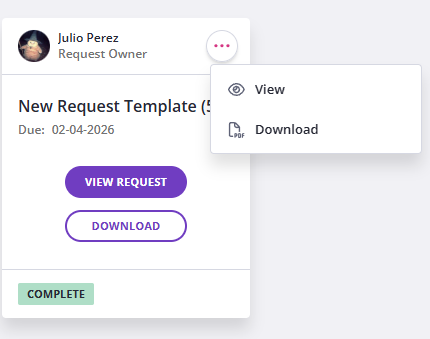
Clients can download a PDF version of their request as long as the setting is enabled. Previously, only your team could export request data. Now you can optionally let clients export their own information too.
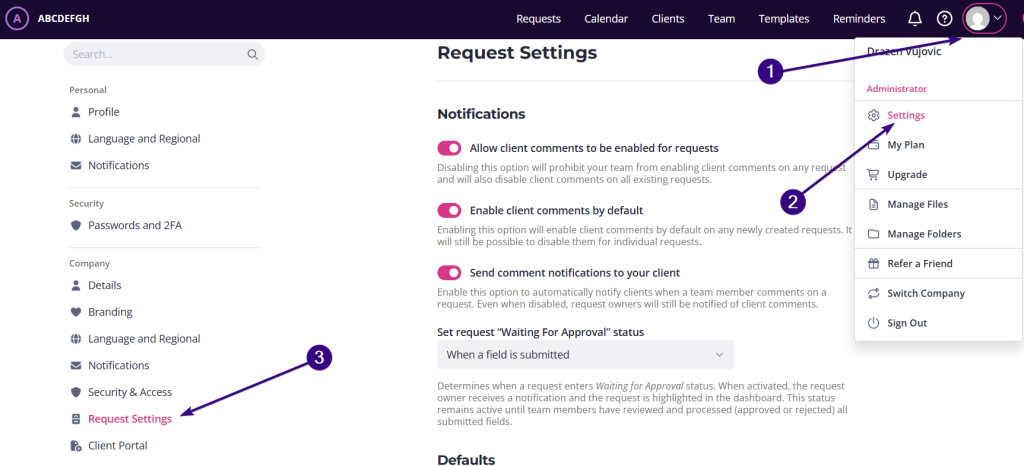
To allow clients to download requests, click your avatar in the top right corner and go to Settings → Request settings.
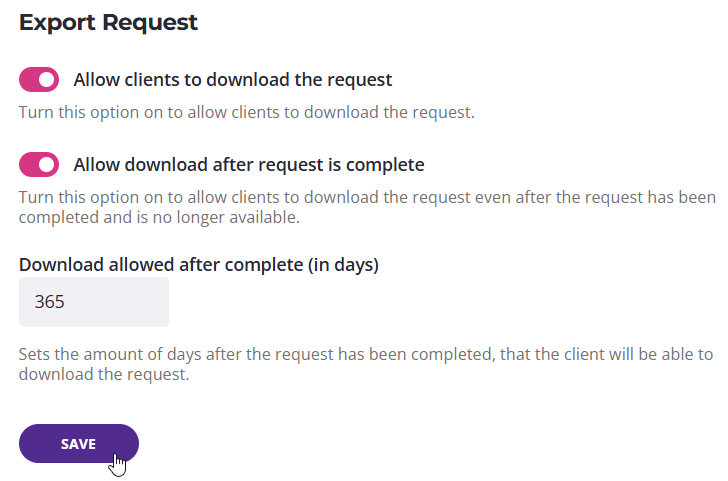
From there, scroll to Export Request and activate:
- Allow clients to download the request
- Allow download after request is complete (optional)
You can also set how many days the download should remain available after completion (with 365 days being the maximum allowed number). Once done, click Save to complete the request export setting.
| Note: This is an opt-in feature. If you want to let clients download their submissions, enable it. If you’d rather keep it firm-side only, no action needed. |
How clients can download a request
Clients can download their request in a few different ways, depending on how they access it.
1. From the completion email
If your reminder schedule includes a “request complete” notification and you’re using the default email template, clients will receive an email with a download button as soon as the request is marked complete:
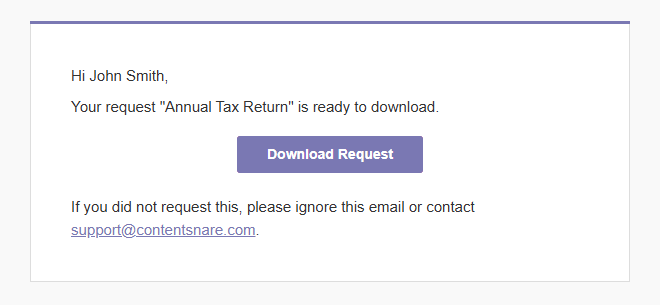
| Note: The download email is only sent if your reminder schedule includes the request complete notification. |
2. Inside the request
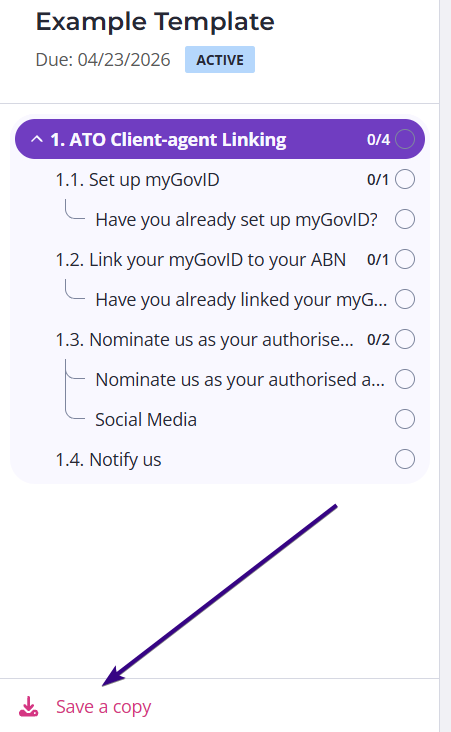
Clients can download a copy directly from within the request using the Save a copy option at the bottom of the page:
3. From the client portal
If the client logs in or accesses via a magic link, they can download the request from the request list once it has been marked as Complete: