
You can update request instructions in three different ways, depending on whether you want the change to apply to one individual request, a specific template, or all newly created requests (default instructions).
Option 1: Update instructions for an individual request
If you only need to update the instructions for a single request, do it during the request creation process.
One way to do that is from the Essentials step:
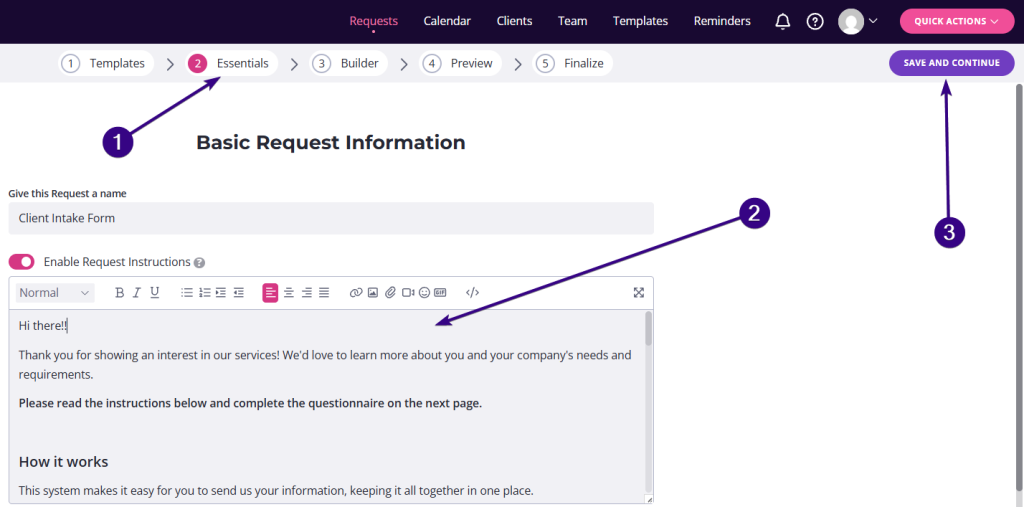
You can edit the content directly in the editor. Once done, click Save and Continue in the upper-right corner of the screen.
Another option is to edit instructions from inside the request through the Builder step:
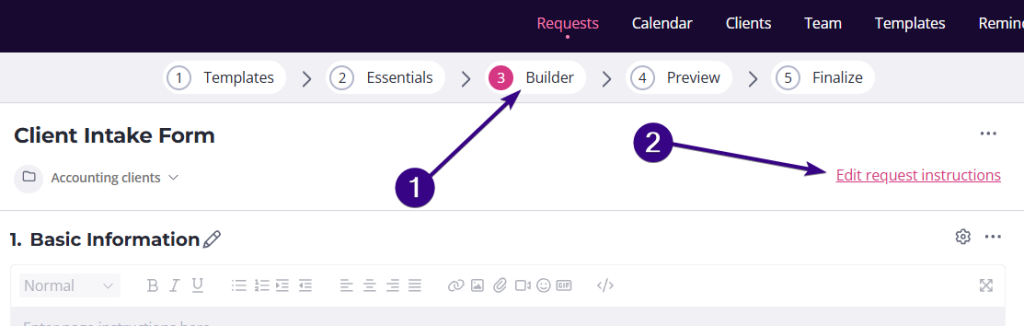
Make your changes in the pop-up window and click Save.
| Note: These changes will only apply to the individual request. |
Option 2: Update instructions for a specific template
If you want all future requests created from a particular template to feature updated instructions, you’ll need to edit the template itself. Go to the Templates tab at the top and find the one you want to update.
Then, click the three dots on the template card and select Edit:
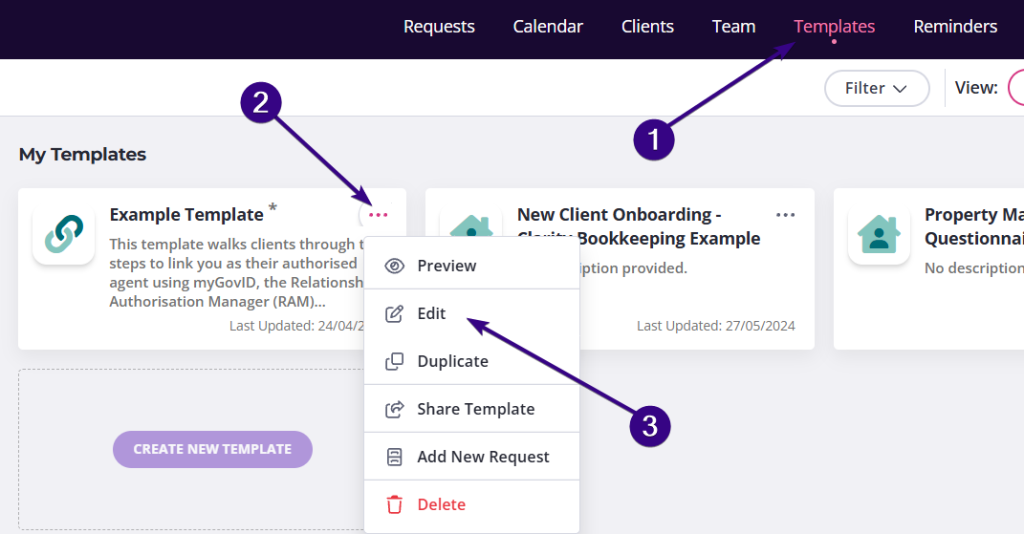
Inside the template, click Edit request instructions to update and save the instructions. All new requests created from this template will use the updated instructions (existing requests created from that template won’t be updated automatically).
Option 3: Update the default instructions
You can also edit the default instructions. To do this, click your avatar in the top-right corner and go to Settings → Request Settings. Over there, you can edit the default instructions and save your changes.
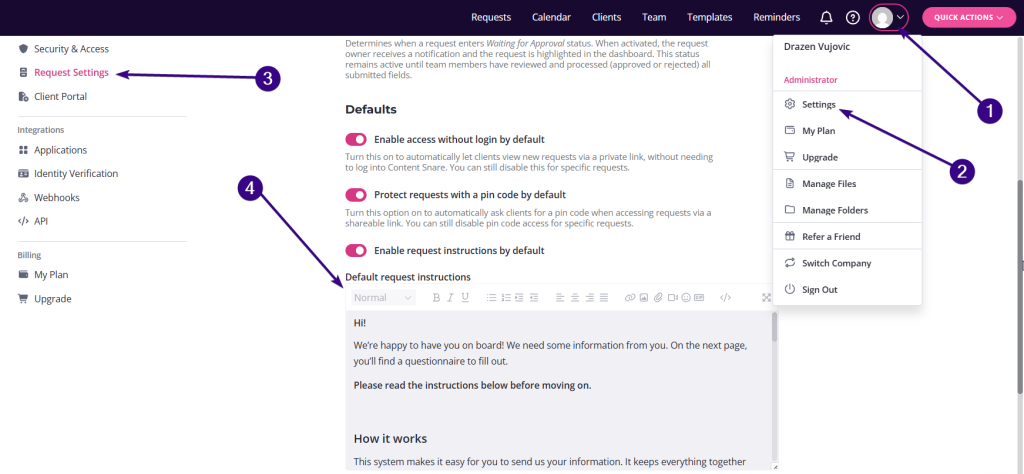
| Note: These changes will only apply to newly created templates and requests going forward. |