
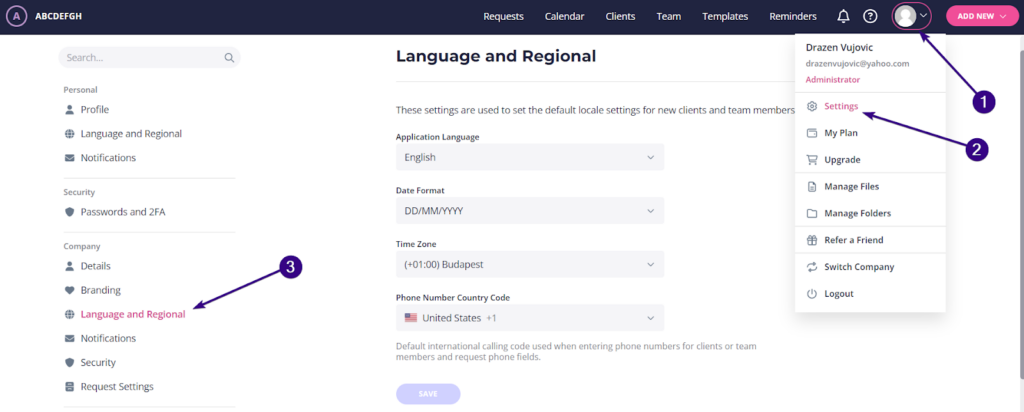
It’s possible to set or edit the default locale settings in Content Snare. To do that, click the avatar icon in the upper-right corner and choose Settings from the drop-down menu.
Then you’ll see Company → Language and Regional on the left side of the dashboard:
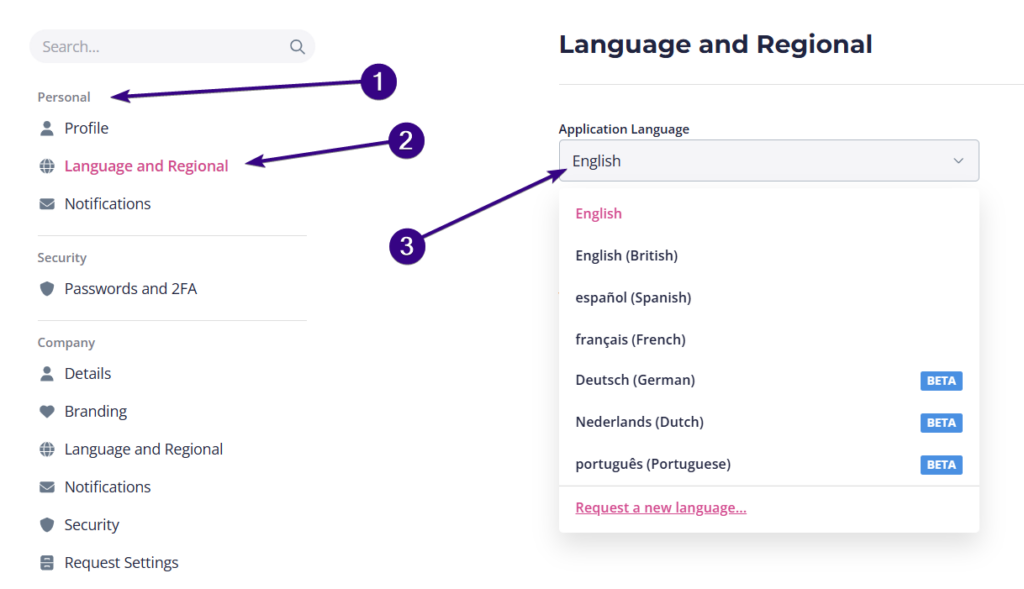
You can choose one of these languages from the Application Language drop-down menu:
- English
- English (British)
- French
- German
- Spanish
- Dutch
- Portuguese
Once selected, every team member and client will have that default language.
| Note: Remember to confirm your settings by clicking the blue Save button at the bottom of the page. |
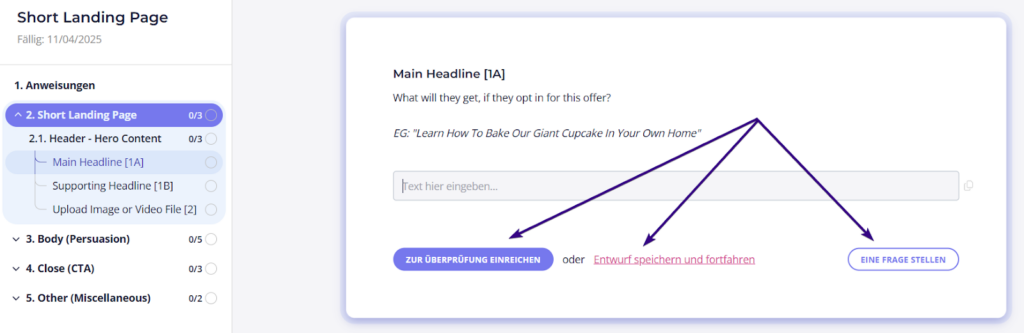
However, the language in the templates (English) doesn’t change automatically — you’ll need to create your own template in your preferred language. The only details that do change in the templates are the following field-related buttons:
- Submit for review
- Save draft and continue
- Ask a question
For example, this is what a template looks like if you choose German as the default language:
Team member language settings
Members of your team can change the default language through their own personal settings. To do that, they have to go to Language & Regional and select their own default language from the dropdown:
| Note: Team members who aren’t account administrators cannot see or access company-related settings. They can only adjust their own personal settings. |
Client-specific language settings
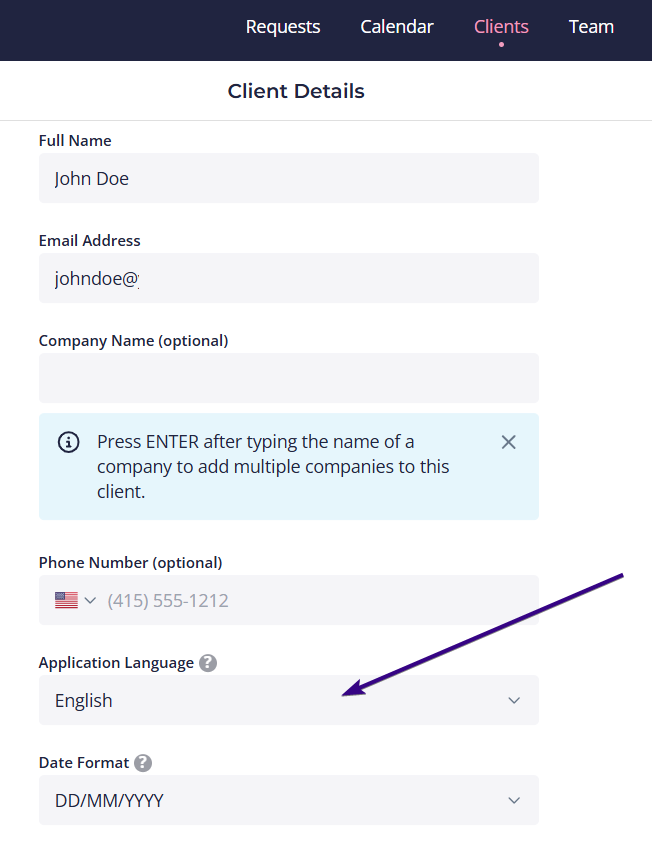
It’s also possible to use different languages for specific clients. To do that, go to the Clients tab and click on a given client from your list.
This opens client-related details where you can adjust language settings from the dropdown menu:
Other locale settings
Content Snare allows you to edit a few more locale settings through their respective drop-downs:
- Date format
- Time zone
- Phone number country code