
If you’d like to reuse a page or section from one request in another, do it by saving it as a template first.
Open the request (or template) that contains the page or section you want to reuse. In the left sidebar under Pages, click the three dots next to the page or section name. From the dropdown menu, select:
- Create Page Template to save the entire page
- Create Section Template to save the entire section
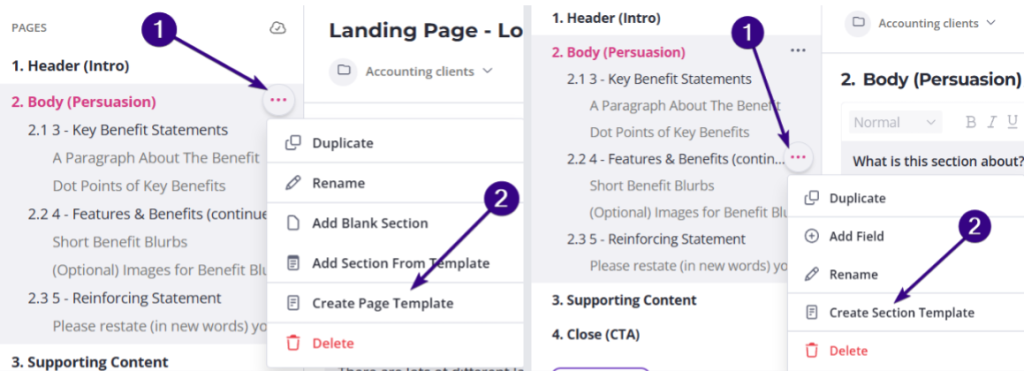
This will make the page or section available in your template library.
Add the saved page or section to another request
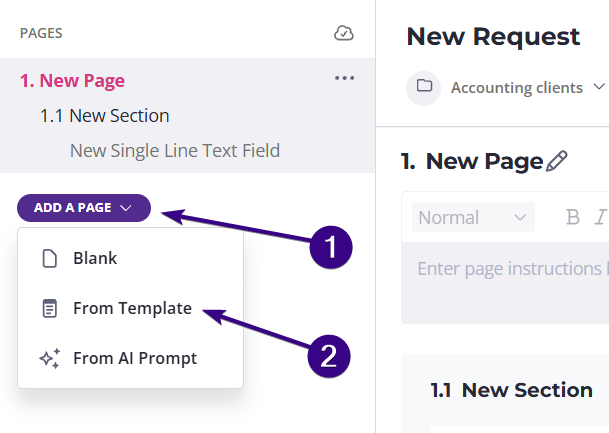
Now open the request (or template) where you want to add the saved content. To add a full page from a template, click Add a page and select From Template. Then choose the page template you previously saved:
To add a section from a template, click Add a section and select From Template. Then choose the section template you previously saved:
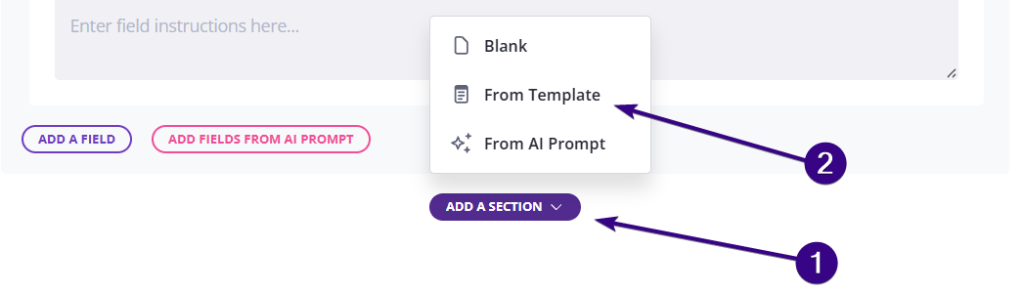
The saved content will now be inserted into your request.