
A simple way to do this is to create a draft request from the template and export it from there. Start by creating a new request using the template you want to export. When the request is created, leave it as a draft (don’t publish it) and return to your Requests dashboard.
Once there, find the draft request in your dashboard, click the three dots menu next to its name and select Archive Request:
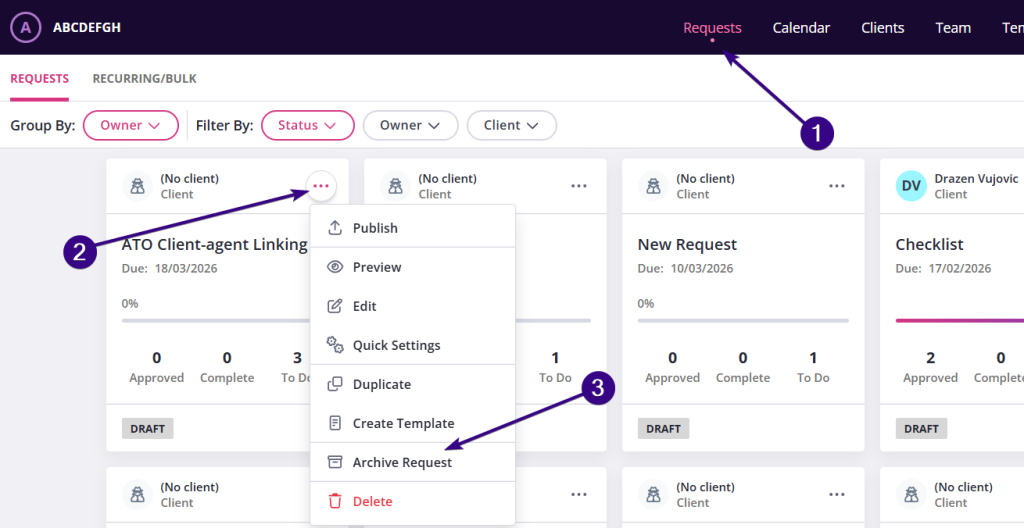
This moves the request to the Archived state. Once the request has been archived:
- Click the three dots menu again
- Select Export Request
- Choose the PDF format from the dropdown menu
- Click Begin export
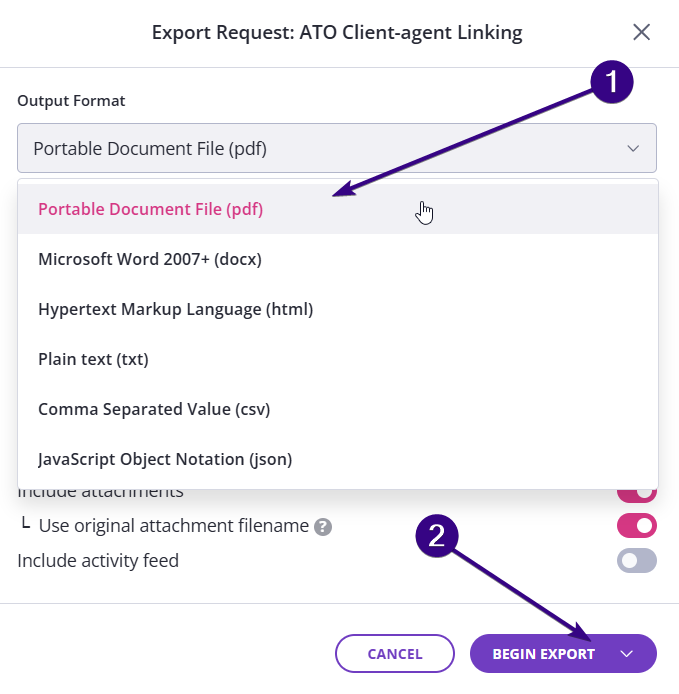
Once done, Content Snare will generate a PDF version of the request, which you can download and save. The exported file will be a blank PDF version of your template, showing all fields and structure without any client responses.