
If you’ve marked a request as Completed or moved it to Archived, you can still change it back to Published. This is useful if a client needs to add more information or you want to reopen the request for further updates.
Changing request status from Completed back to Published
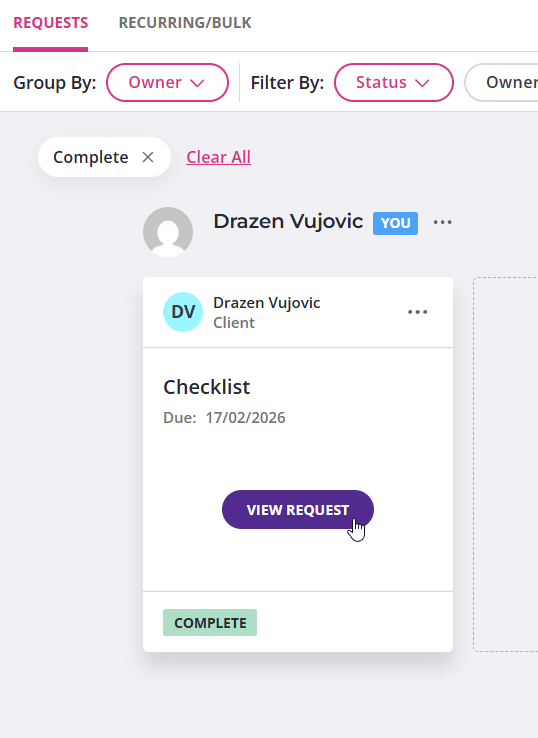
To change the status of a completed request, go to the Requests page and find the one you’d like to reactivate.
| Pro tip: You can filter requests by status to quickly find the one you need. |
Hover over the request and click View Request:
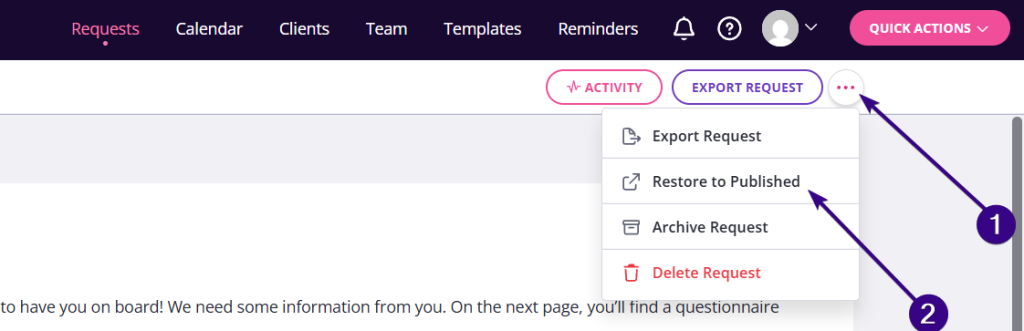
Once inside the viewer, click the three dots in the upper-right corner and Restore to Published:
Bear in mind that restoring the request does not:
- Alert your client
- Resend the request
- Reset the link (they can access it using the same link)
- Delete your client’s responses
Changing request status from Archived back to Published
To restore an archived request back to Published, click the three dots next to the request name in your dashboard and then click Restore to Complete:
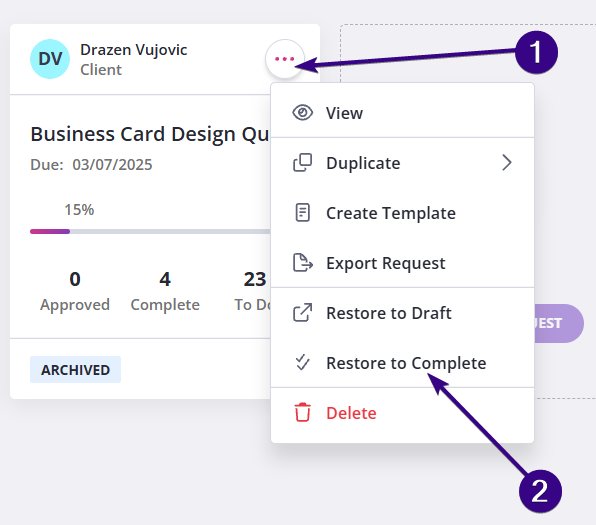
Once restored, the request will move to Completed status. From there, repeat the steps above to change it from Completed back to Published.