
Xero Practice Manager offers a whole range of automation features that make accounting workflows smoother. However, the key is knowing how to set them up so they help save time without adding unnecessary complexity.
At the 2025 Content Snare AI & Automation Summit, Amy Holdsworth, Founder of Clarity Street, cut through the confusion with a practical look at what XPM automation actually does, where it goes wrong, and how to configure it so your team can work faster without introducing chaos.
Let’s check out the most important insights!
ABOUT
Amy Holdsworth
Amy Holdsworth is the Founder of Clarity Street and a recognized leader in accounting technology implementation. With over 15 years of experience helping firms modernize their workflows, she specializes in integrating the latest software into every stage of the client lifecycle. A former practice manager herself, Amy understands both the technical and human sides of change, making her uniquely skilled at translating tech into everyday improvements for accounting teams.
Does XPM really have automation?
Xero Practice Manager does include automation, but not always in the way people expect. As Amy put it:
“Does XPM have automations? It sort of does.”
The platform provides several built-in features that can run without manual intervention, from recurring jobs and automatic activity statements, to client detail updates and pre-filled notices of assessment. You can even go straight from quote to job to invoice, or trigger notifications when a job reaches a certain percentage of its allocated time.
While these tools can speed things up, Amy stressed that they work best when used in the right context. For example, automation that creates new jobs or pulls data automatically can be a huge help in a standalone XPM setup - but when connected apps are involved, the same feature can cause duplication or workflow issues.
What not to automate (and why)
As mentioned, some of XPM’s automation features work beautifully in a standalone setup, but they can quickly create duplication or gaps in your workflow when you add third-party tools into the mix. For instance, here are a few issues to watch out for:
- Recurring jobs can flood your system if you’re also using a proposal tool like Ignition, which already deploys jobs automatically.
- Automatic activity statements can download and attach to jobs unexpectedly, sometimes creating duplicates or mismatched workflows.
- Automatic job close from the final invoice can prematurely shut down a job before all related tasks are complete.
Ultimately, whether these features help or hinder comes down to how they interact with the rest of your systems. This means that the best automation setup is the one that works in harmony with your full tech stack.
Best practice setup for improving your XPM workflow
A smooth XPM workflow starts with getting the basics right, which means setting up job templates, categories, and states with intention. It’s recommended to keep these elements high-level rather than creating dozens of variations that overcomplicate the system. Here’s an example of what you can do with it:
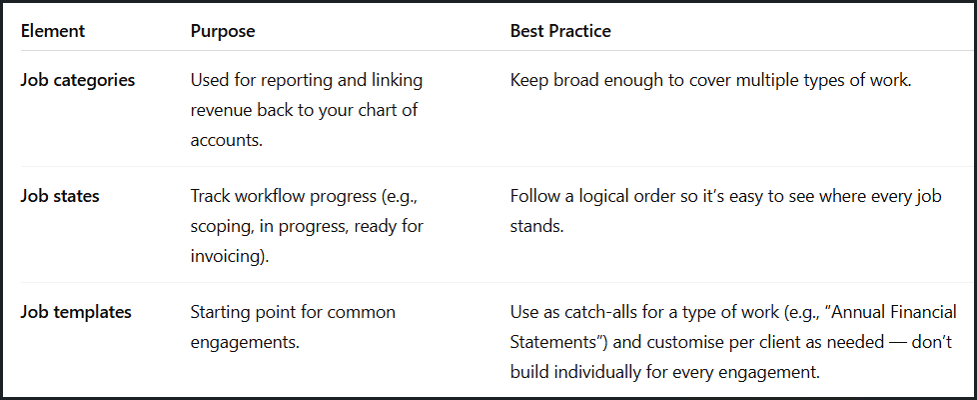
The general rule is “less is more” when it comes to tasks within a job. For example, you can focus on four or five high-level tasks (such as pre-work, do the work, review, and client meeting) instead of a long checklist that rarely gets ticked in real time. That’s because fewer tasks make it easier to capture timesheets accurately and spot where time is really being spent.
In addition to that, XPM’s staff allocation feature can turn budget estimates into a real-time productivity tool. Allocated hours act as a guide for the team, and the “traffic light” system on jobs shows whether you’re under, on, or over budget at a glance.
Structuring jobs for visibility vs. financial tracking
When setting up jobs in XPM, Amy recommends choosing an approach that matches your firm’s priorities, whether that’s seeing the full financial picture or getting more granular workflow visibility. In a nutshell, you can do one of these two things:
One annual job with all tasks
In this setup, a single job is created for the entire year, and each piece of work (BAS, annual financials, FBT, tax planning) is a separate task within it. This makes it easy to see the total revenue, costs, and profitability for the client in one place. However, it can reduce visibility into individual deadlines and progress on specific pieces of work.
Separate jobs for each engagement
In this case, every engagement type gets its own job. This offers clearer start and due dates, better workflow tracking, and more precise reporting on completion status. As Amy explains:
“A job template should be a catch-all, something that works for any client needing that type of work, which you then tweak for their specific situation.”
On the downside, it can be harder to see a consolidated financial picture without running extra reports.
Bear in mind that neither approach is “right” or “wrong” per se. The best choice really depends on whether your firm values high-level financial tracking or detailed workflow management.
Using XPM’s reports and filters to stay on track
XPM’s reporting and filtering features are some of its most valuable tools for staying on top of deadlines, budgets, and billing, but they’re often underused. The secret is to configure them well, so they can give you instant clarity on the state of your workflow and help prevent revenue from slipping through the cracks:
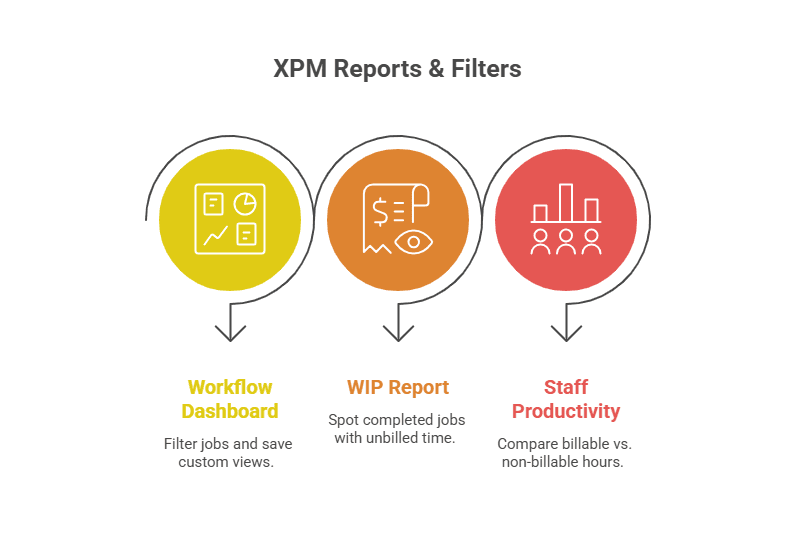
The workflow dashboard is a great starting point. By applying filters for specific staff members, job states, or due dates, you can quickly cut through the noise and focus on the jobs that matter most. Saving these filters lets you create personalized views, such as “Jobs in progress for the admin team,” so you don’t have to rebuild the same search each time.
Another high-impact area is the Work in Progress (WIP) report. This isn’t just about checking totals: it’s about identifying jobs that are marked as complete but still have unbilled time or costs. Regularly reviewing this can reveal thousands of dollars in work that hasn’t yet been invoiced.
Thirdly, the staff productivity report offers a quick comparison of billable versus non-billable hours for each team member. If you monitor this regularly, you can see whether productivity is on track, spot trends over time, and make more informed decisions about workload and capacity planning.
Used together, these three tools make XPM more than a job tracker - they turn it into a central hub for keeping your practice efficient and profitable.
Final thoughts: Automate with intention
Xero Practice Manager may not automate every part of your accounting workflow, but it can become a powerful efficiency booster if its features are set up with care. From choosing the right job structure to using reports and filters strategically, the real gains come from aligning the system with how your firm actually works (and avoiding the features that clash with your wider app stack).
Amy’s approach is a reminder that the value of XPM isn’t in chasing every possible automation, but in making the right ones work for you. As she put it:
“It may not do things in the way that you want it to, but it actually does work pretty damn well with what you need it to do.”